
How to Add Auto Genius as a Marketer in Google Analytics 4 (GA4)
Purpose
This page shows how to add Auto Genius as a marketer in your Google Analytics 4 (GA4) property.
Before you start
Sign in with a Google account that can manage access for the correct GA4 property.
If you manage more than one GA4 property, make sure you are in the correct property before you begin.
Step 1: Open Google Analytics
Go to https://analytics.google.com/analytics/web/.
Step 2: Open Admin
Click Admin in GA4.
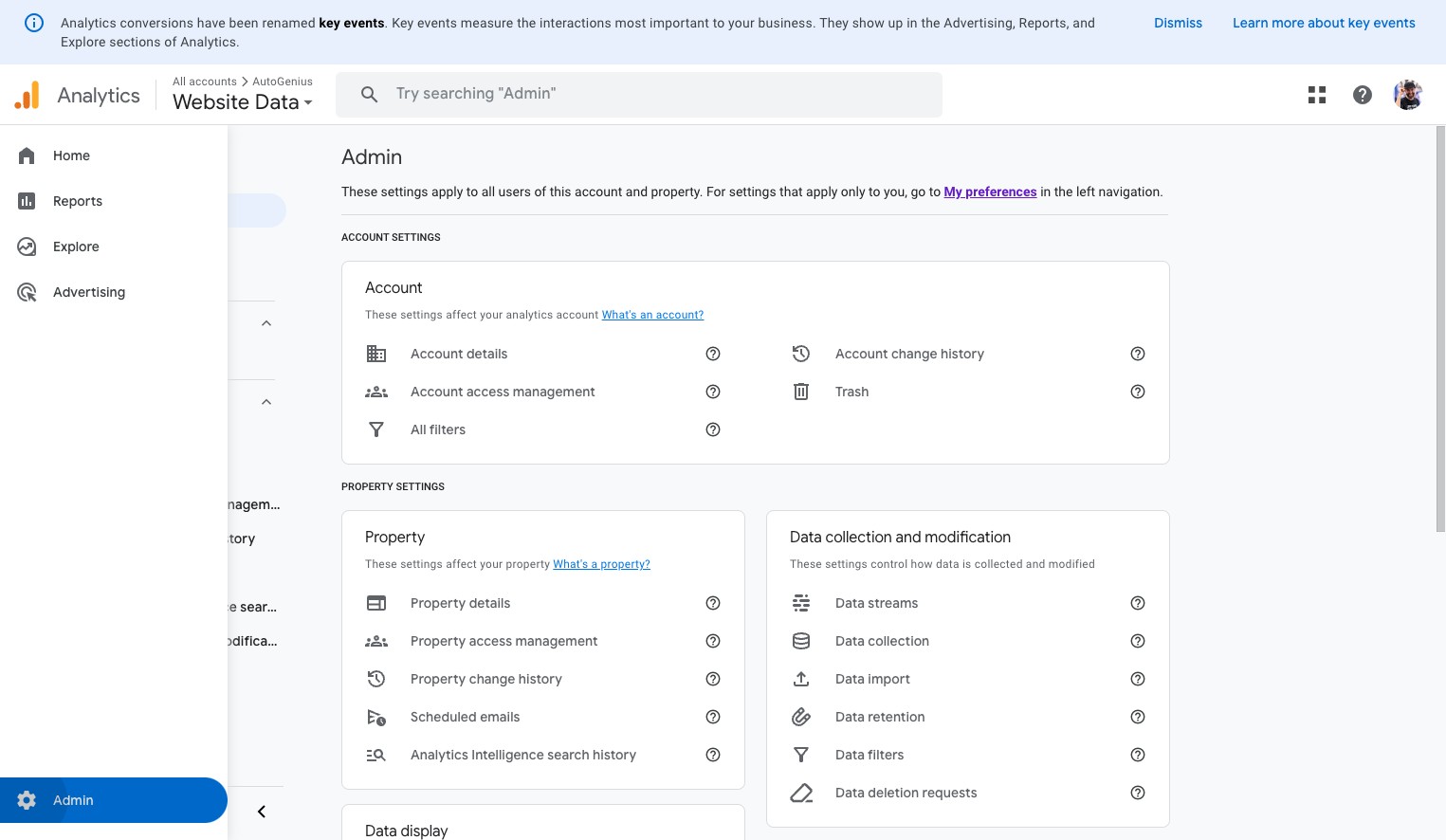
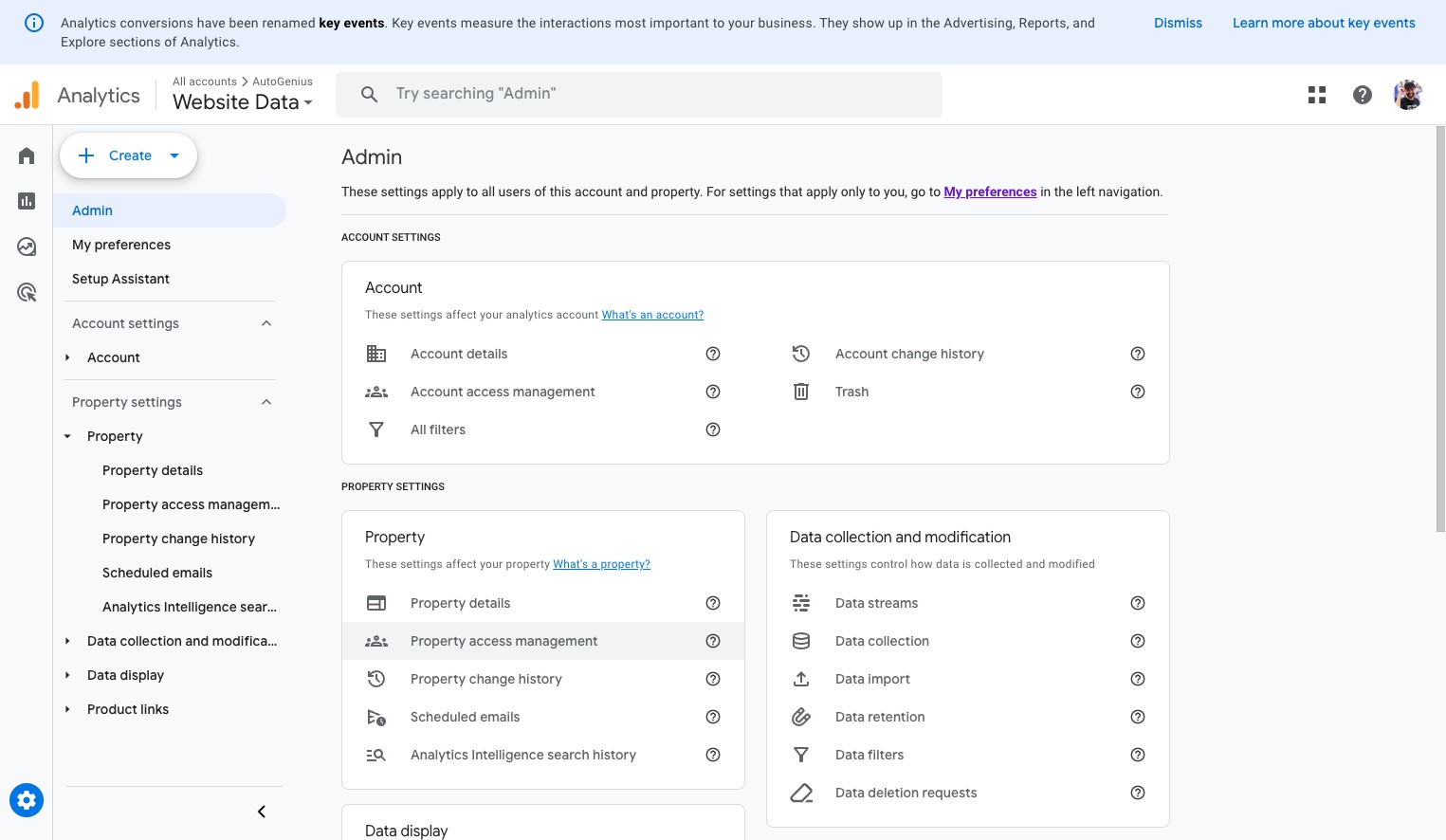
Step 3: Open Property Access Management
In the Property column, click Property Access Management.
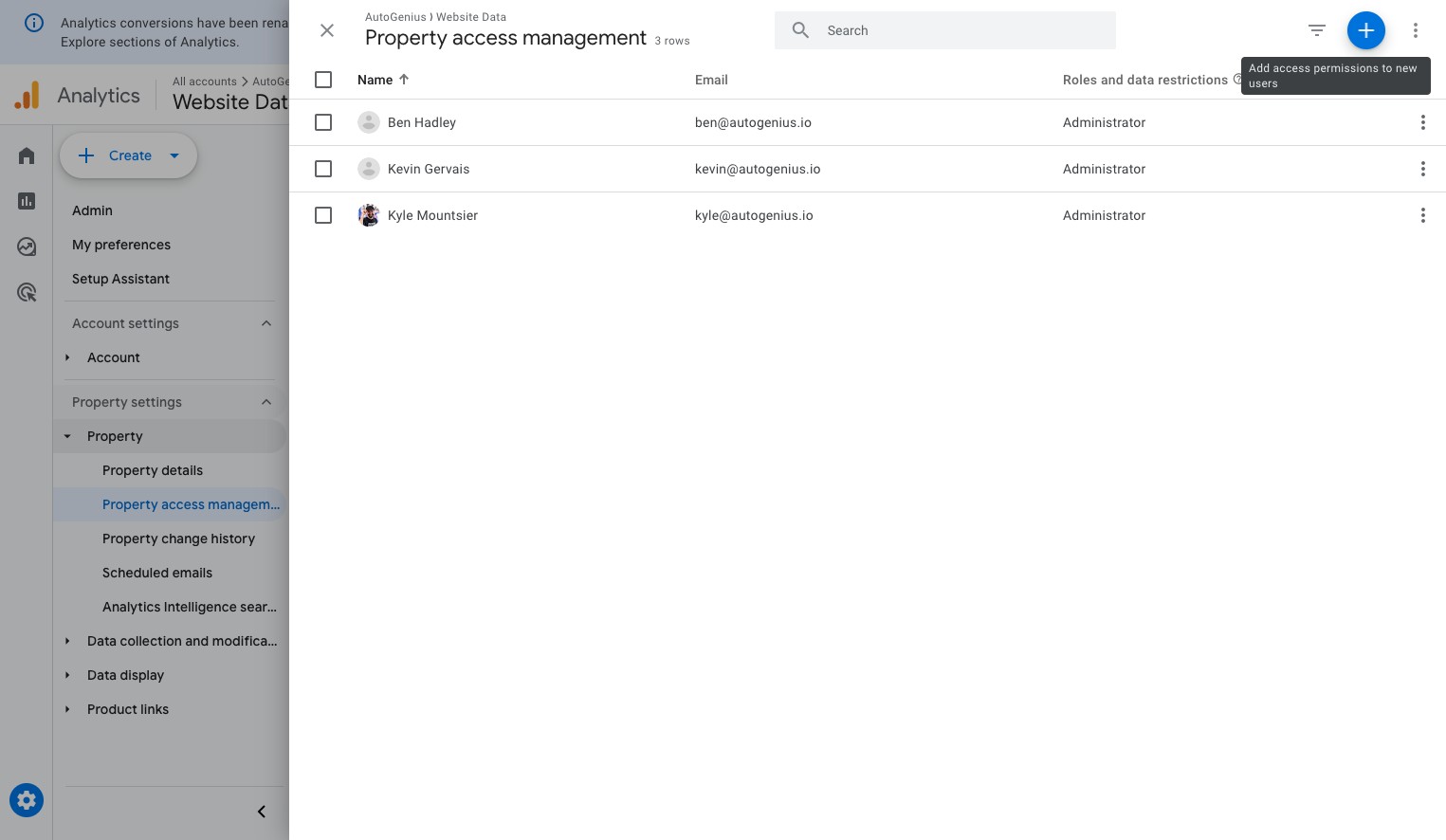
Step 4: Start a new access invite
Click Add.
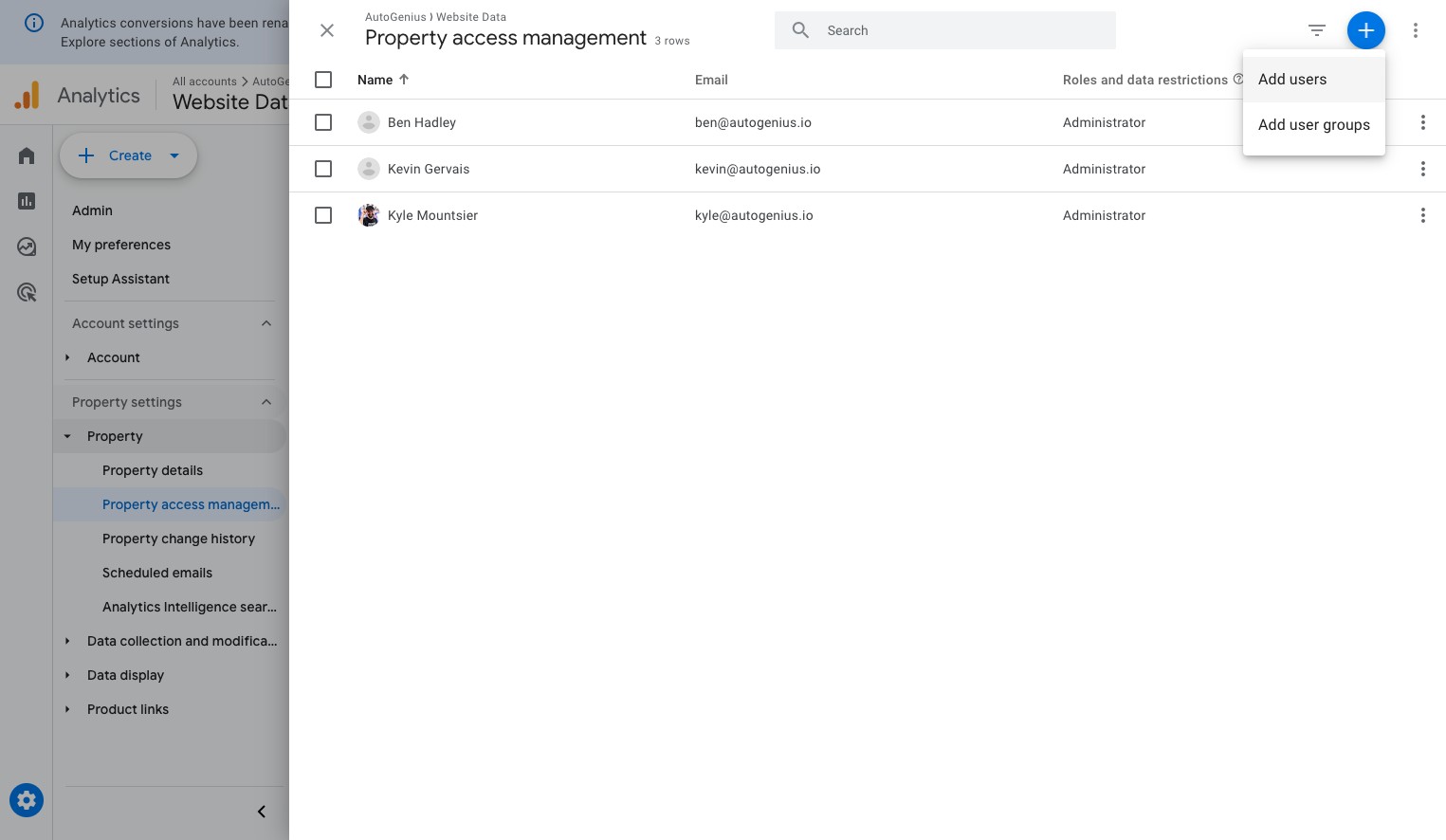
Step 5: Choose Add users
Click Add users.
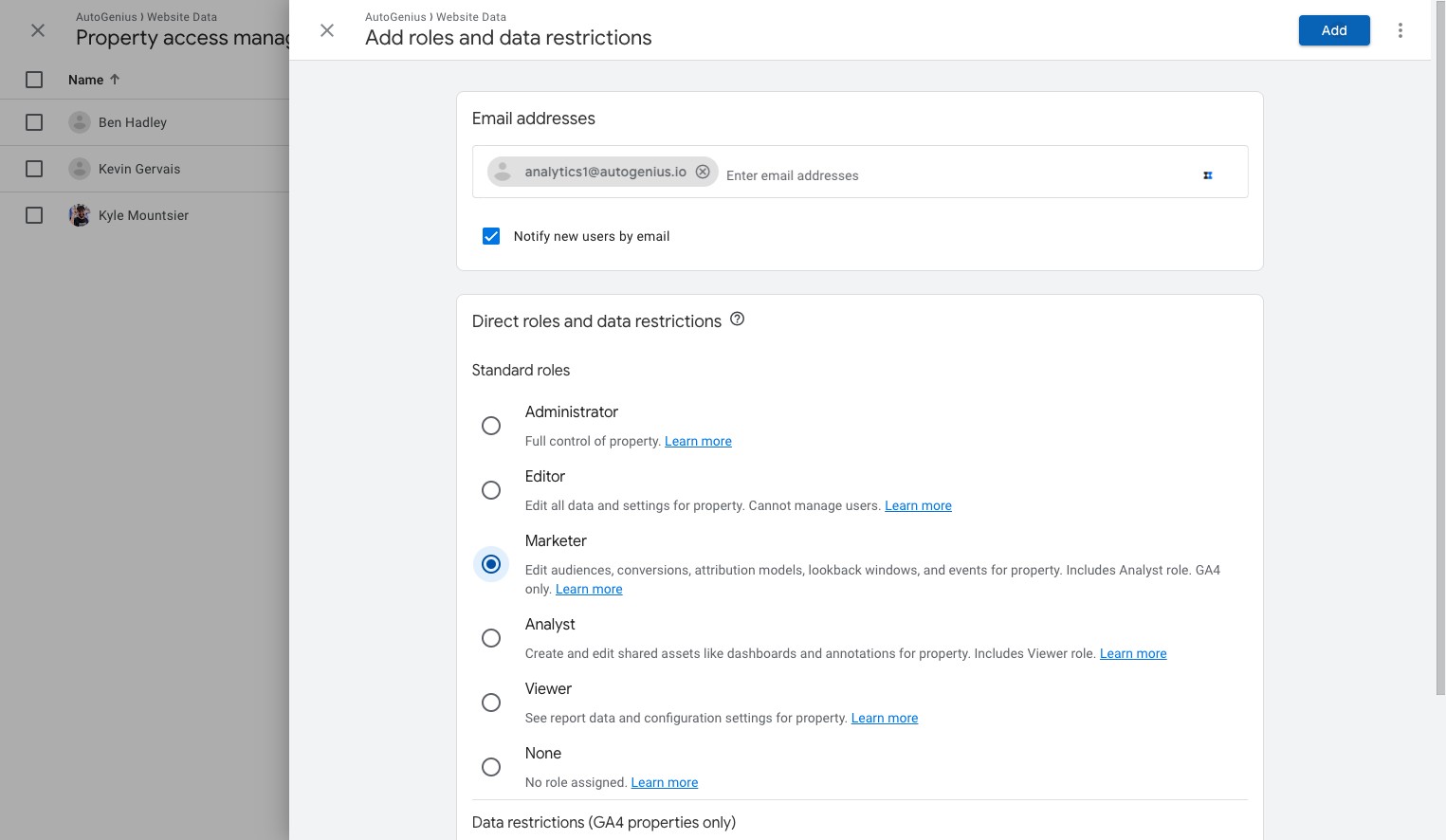
Step 6: Enter the Auto Genius email
Enter analytics1@autogenius.io in the new user email field.
If Auto Genius gave you a different email address, use that address instead.
Step 7: Select the Marketer role
Choose Marketer.
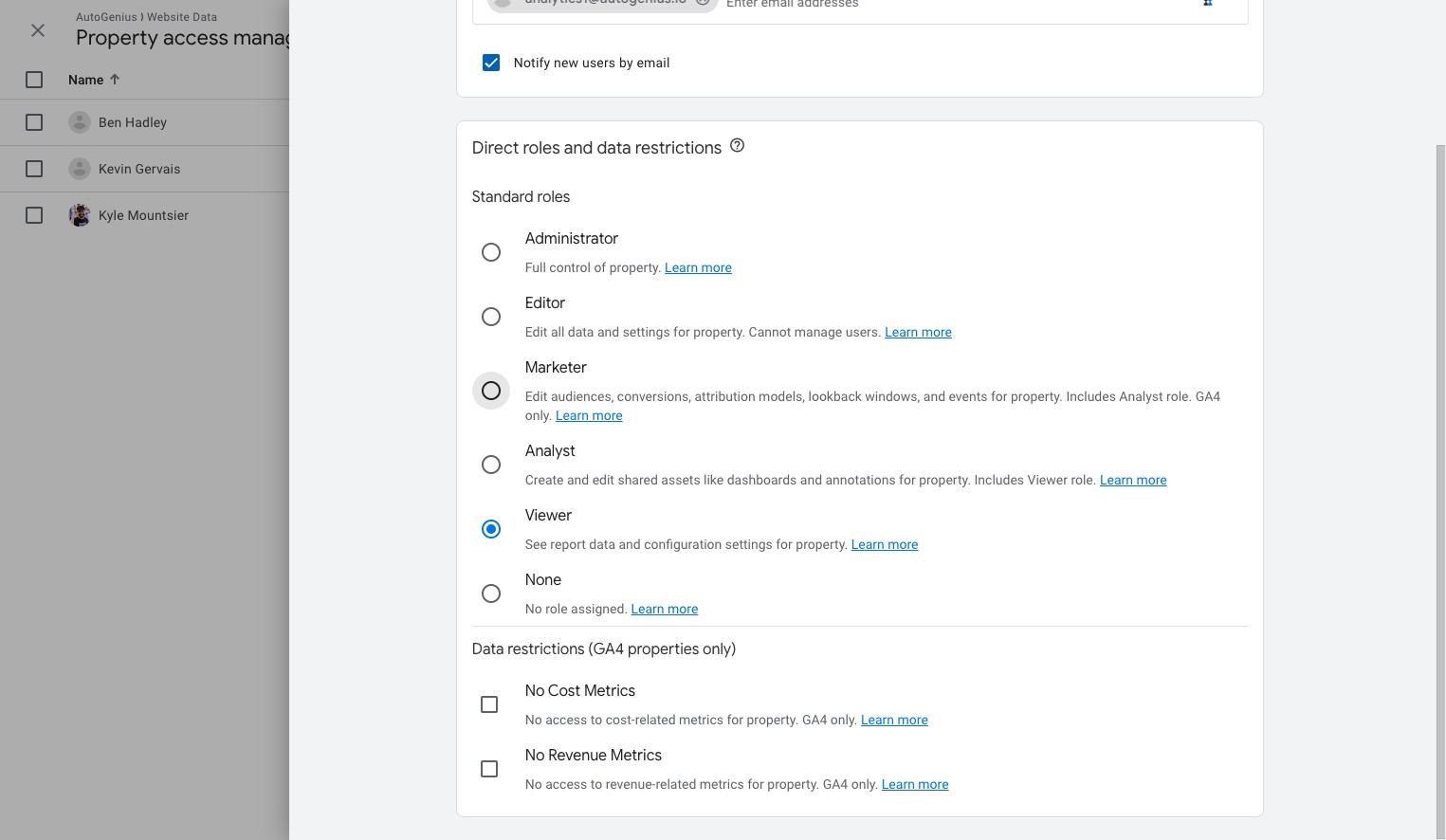
Step 8: Finish
Click Add.
If you do not see these options
If you do not see
Admin, make sure you are in the correct GA4 property.If you do not see
Property Access Management, you may need a dealership teammate with higher GA4 permissions to complete these steps.
What happens next
Google Analytics sends the invite to Auto Genius.
Auto Genius can accept access and continue setup or reporting review.
If you run into an error, contact Auto Genius support and include a screenshot of what you see in GA4.